
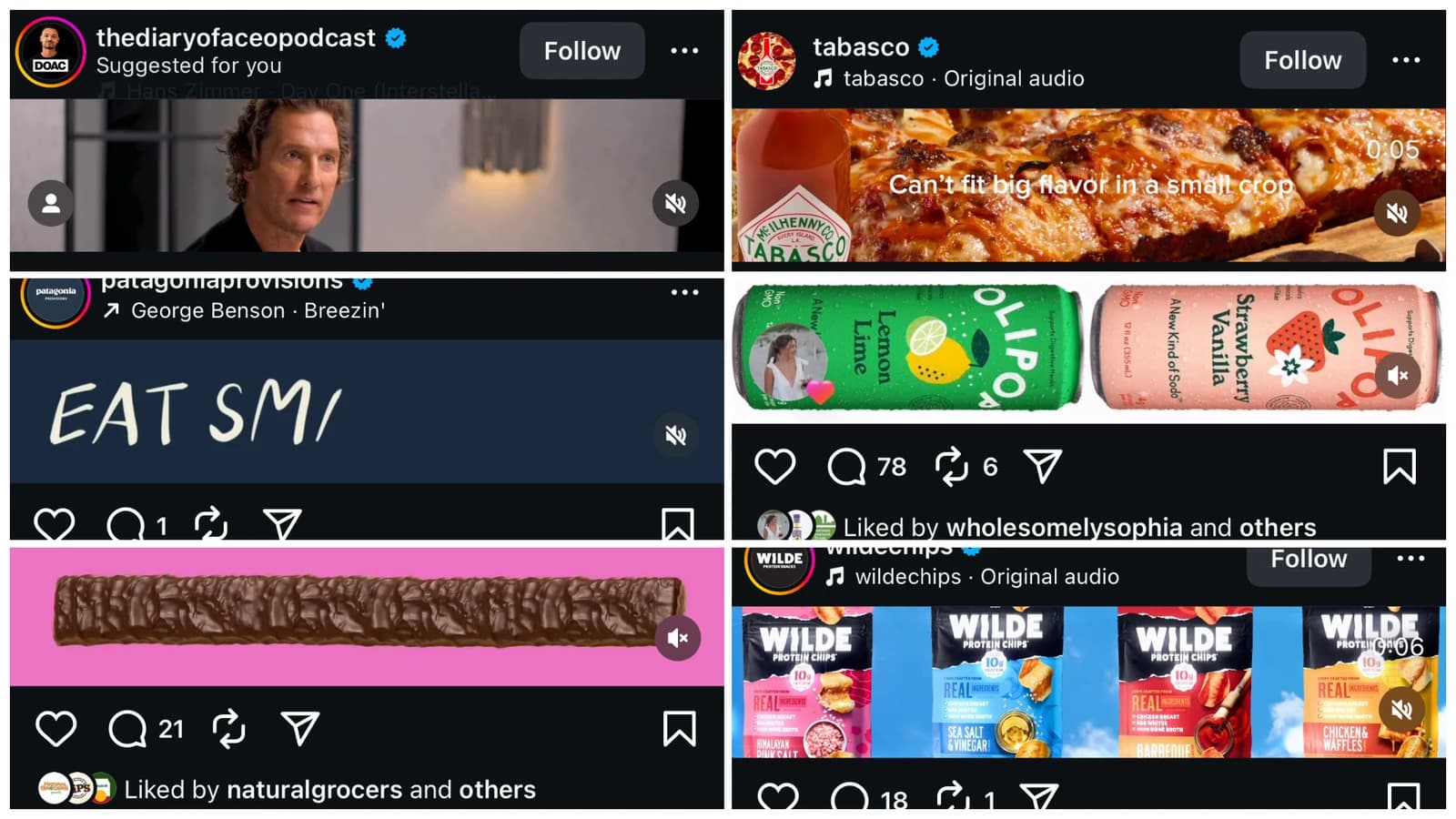
Instagram has a new format: ultra-wide, horizontal videos at 5120×1080 resolution.
Here’s everything you need to know to create your own 5120×1080 video for Instagram, including editing, exporting, and posting tips.
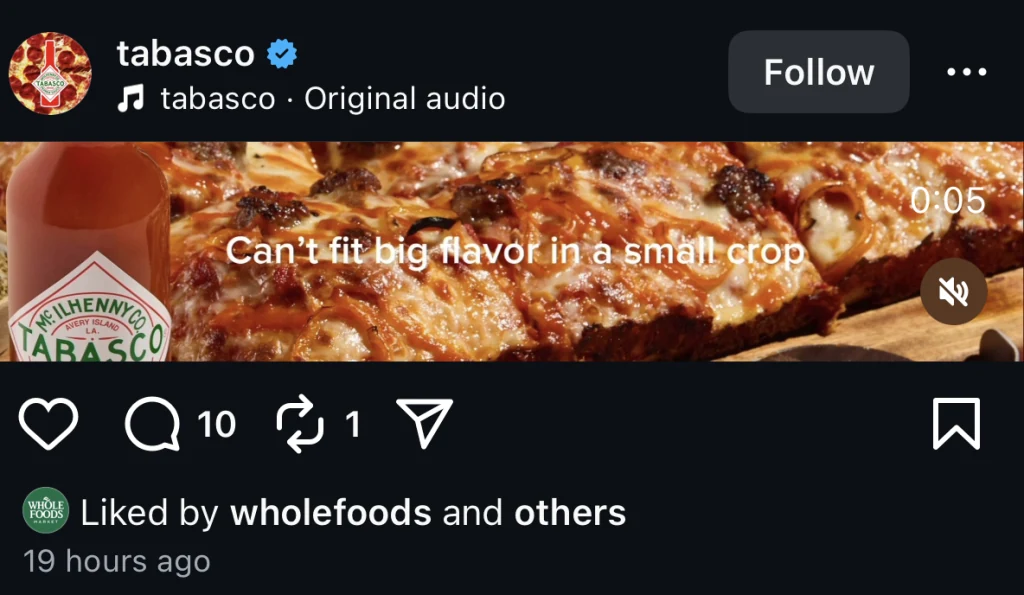
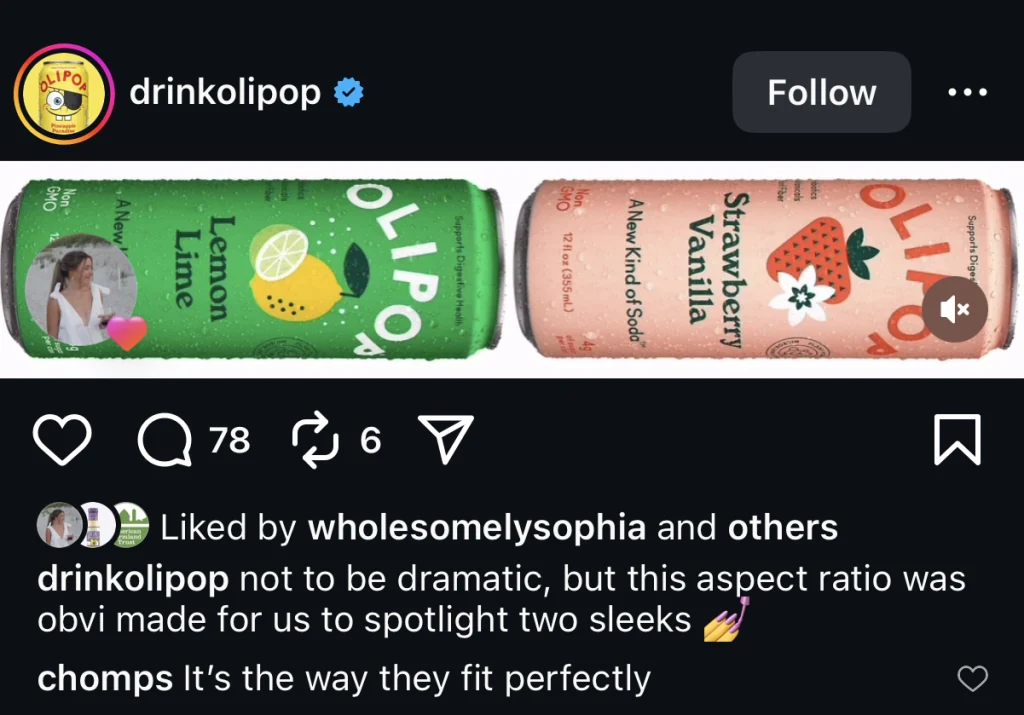
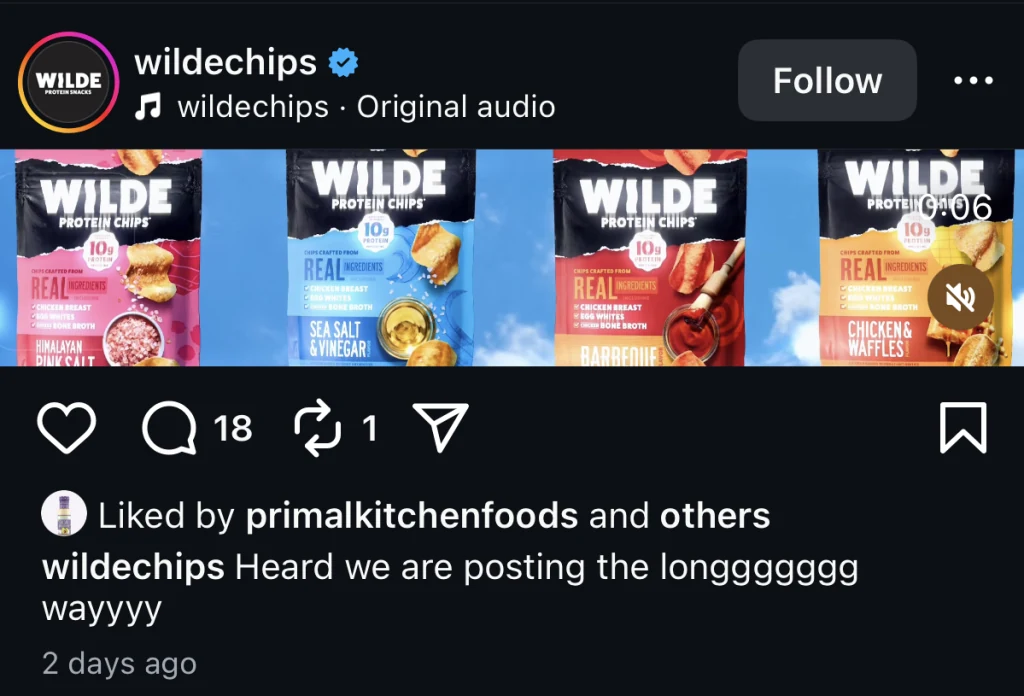
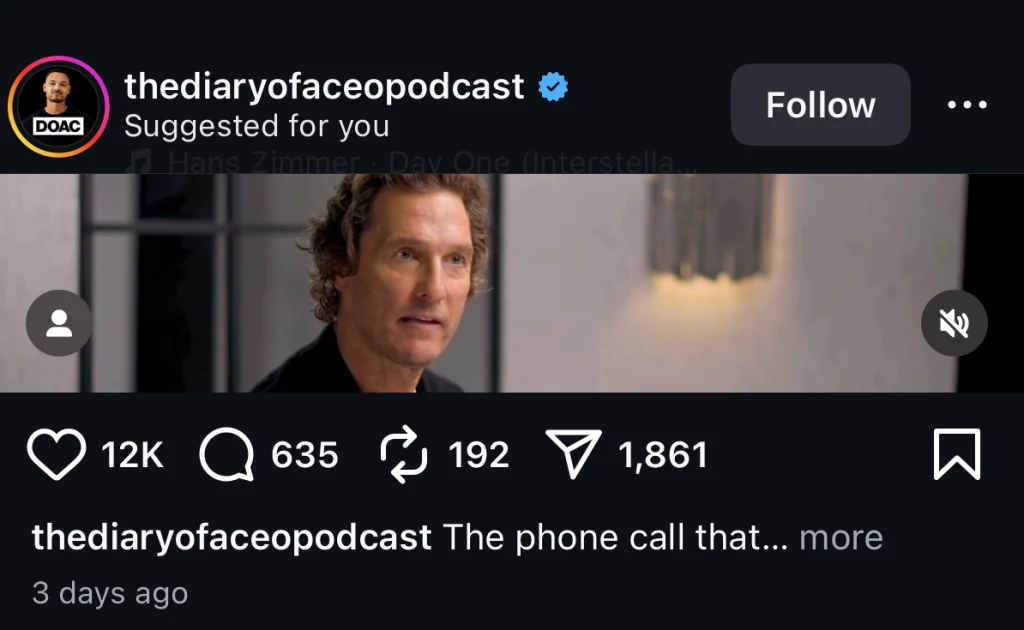
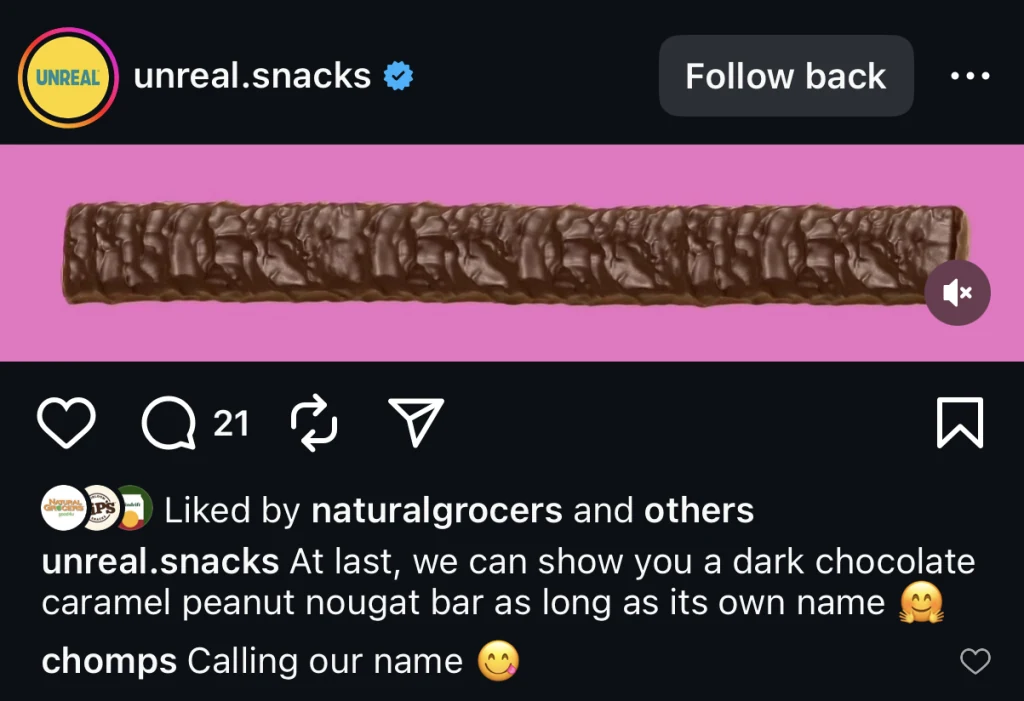
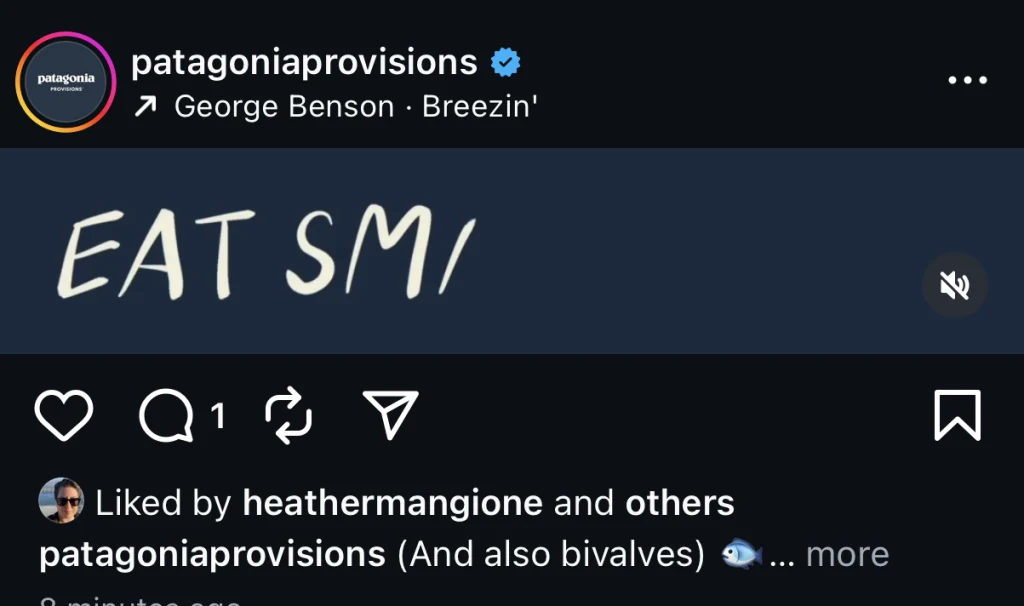
How to Make a 5120×1080 Video for Instagram
1. Edit in 5120×1080
Start a new project in your editing software (Premiere Pro, Final Cut, CapCut, etc.) and set the resolution to 5120 pixels wide by 1080 pixels tall.
2. Export at Full Resolution
When exporting, keep the resolution at 5120×1080. Don’t scale it down or change the aspect ratio. You want Instagram to recognize it correctly.
3. Transfer Without Compression
Use AirDrop or a high-quality transfer tool to move the file to your phone. Avoid apps that compress video, the quality matters here.
4. Upload and Add a Cover Image
On Instagram, tap the + icon to create a post and select your video.
Important: Upload a vertical cover image sized at 1080×1920. This ensures the preview looks clean in your feed and profile grid. Without it, Instagram might stretch or crop awkwardly.
Extra Tips for Better Results
- Add motion to guide viewers across the wide frame
- Break up the video into panels for storytelling or product showcases
- Test on both iPhone and Android to confirm it displays correctly
Ready to Try It?
The 5120×1080 horizontal video trend on Instagram is easy to do.
So why not give it a try?
Let me know how it goes!

If this interested you, subscribe. I'm Leo Morejon—startup leader, Fortune 500 marketer, agency vet, university educator, and side hustle builder. I share what’s working in marketing with no fluff.